Friday, July 8, 2011
Redirect After Successful Login
This is a feature requested by many, you can now redirect users to an URL you specify after they log in to the hotspot, instead of the default welcome page. Just enter the URL in the Control Center > Manage > Locations > click on name > Modify Hotspot Data > Splash Page Settings > Redirect URL after Successful Login. Easy, huh? :)

Thursday, June 23, 2011
Start Your Own Calling Card Service
 When people are away from home they need a solution to call their friends or family on a cheap rate, because mobile roaming is an expensive thing. You can now offer them a possibility to buy calling cards from you which they can use to make cheap international phone calls.
How does it work?
You can set up a SIP gateway with your internet connection, connected to a landline phone which you can put at the reception. In the Control Center you can set what calling cards you would like to sell (for example cards worth 5 USD), then buy those cards from us, print them using our powerful printing tool and sell them to your users.
What is the business model?
We provide the system and pay for the calls. You provide the phone setup and bring the customer. We share the income so you get 50% and we get 50%.
How and when can I start the service?
You can start it right now. You can find a new menu in the Control Center, called "Calling Cards". You should start by going to our How to Start a Calling Cards Service page which provides all information, and the gateway setup guide.
Some notes:
- Calling cards can be used by any SIP software so customers can make phone calls using their own phone or laptop.
- If you connect the SIP Gateway to a hotspot router, the service will work without the need of having the users authenticate. This means that you can allow SIP calls with this service while users have to buy a hotspot access for all other activity on the internet.
Where there is a hotspot service running, chances are big that there is a need for this. So start your calling card service now and make your customers happy!
Monday, June 6, 2011
Redesigned Campground Skin, optimized for outdoors
 We found out that the campground skin is too dark on some laptops especially when used outdoors. Therefore we made a new skin which is lighter and much more readable. You can find the new skin in the Control Center.
Thursday, May 5, 2011
Extended support for mobile devices (Mobile Skins)
 Mobile devices (especially iPhone and Android devices) are getting more and more popular. In our wi-fi hotspots the usage of mobile devices are now more than 10 percent. So we thought we give full support for these devices by creating special skin versions for every skin which are optimized for mobile devices. Larger input fields, large buttons, etc.
Ok so here is the deal.
- Locations that are using default system skins will now automatically display the new, optimized versions of those skins when the user is connected with a mobile device (this is auto-detected). Your custom logos will also be there.
- Locations with custom skins are working as they worked previously, which means that the same custom skin will be displayed for users with regular computers and users with mobile devices. However you can create a mobile version of your custom skin.
For this the following steps are required:
1. Create a new skin based on a mobile version, then customize it.
2. Edit your original custom skin, you can find a new option there on the second line where you can set the mobile version for that skin, just select the one you created in the first step.
Hope you will like this great enhancement of the system and this will probably result a better user experience and more conversions on your sales.
Hotspot Firmware Released for Ubiquiti AirMax devices
 We have released a special hotspot firmware for Ubiquiti AirMax routers by popular demand.
 Compatible Devices: Rocket M, NanoStation/LocoStation M, NanoBridge M, Bullet M, PicoStation M, PowerBridge M, AirBridge M (and all HP versions of course)
Devices will work with AirOS 3.5 but a new option will appear where you can set your hotspot settings.
For detailed instructions click here.
Tuesday, March 1, 2011
Using your own SPLASH page with Hotspot FREE SPLASH
It is now possible to use your own external splash page (on your server) with Hotspot FREE SPLASH.
You can find our detailed guide here: http://www.hotspotsystem.com/deskpro/kb_article.php?ref=3635-EGXV-1011
You can find our detailed guide here: http://www.hotspotsystem.com/deskpro/kb_article.php?ref=3635-EGXV-1011
Router Alert for Mikrotik Routers
Great news if you are using Mikrotik, you can now use our Router Alert feature so you will know and notified when your router is down.
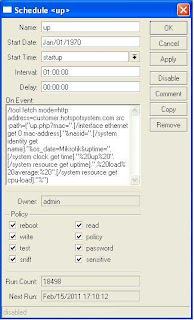
Go to System > Scheduler and add a new task by pressing the plus sign.
Name: up
Interval: 01:00:00
On Event:
/tool fetch mode=http address=tech.hotspotsystem.com src-path=("up.php?mac=".[/interface ethernet get 0 mac-address]."&nasid=".[/system identity get name]."&os_date=Mikrotik&uptime=".[/system clock get time]."%20up%20".[/system resource get uptime].",%20load%20average:%20".[/system resource get cpu-load]."%")
Policy: enable all
Press Apply and OK.
Go to System > Scheduler and add a new task by pressing the plus sign.
Name: up
Interval: 01:00:00
On Event:
/tool fetch mode=http address=tech.hotspotsystem.com src-path=("up.php?mac=".[/interface ethernet get 0 mac-address]."&nasid=".[/system identity get name]."&os_date=Mikrotik&uptime=".[/system clock get time]."%20up%20".[/system resource get uptime].",%20load%20average:%20".[/system resource get cpu-load]."%")
Policy: enable all
Press Apply and OK.

Subscribe to:
Posts (Atom)